TeraBox for PC: Download and Use on Windows & Mac
TeraBox can be used on a computer through its Windows desktop application, Microsoft Store listing, web interface, or supported Mac application. Users can sign in with the same account they use on a phone or tablet to access files that have successfully synchronized with the cloud. An Android APK cannot be installed directly as a normal Windows program; it requires an Android emulator or another compatible Android environment. This guide explains each PC access method, Windows and Mac installation, browser use, account synchronization, common problems, and the limitations of running a TeraBox MOD APK on a computer.
TeraBox for PC Quick Information
|
Information |
Details |
|---|---|
|
Main platform |
Windows PC |
|
Additional access |
macOS and web browsers |
|
Official app developer |
Flextech Inc. |
|
Official free storage |
1024GB after registration |
|
Account required |
Yes, for personal storage and synchronization |
|
Windows access |
Desktop app or Microsoft Store |
|
Browser access |
Available without installing software |
|
Native APK support |
No |
|
APK method on PC |
Android emulator |
|
Main use |
Uploading, organizing, sharing and accessing cloud files |
TeraBox currently advertises 1024GB of free cloud storage and supports access through desktop applications, mobile apps, and web browsers. These options allow users to choose between installing the official desktop application and accessing their cloud files directly through a browser.
The official Windows version is available through the Microsoft Store, while Apple’s listing supports compatible Mac devices. However, an Android APK cannot run natively on a PC and requires an Android emulator or another compatible Android environment.
What Is TeraBox for PC?
TeraBox for PC is the computer version of the TeraBox cloud-storage service. It lets users upload files from a Windows or Mac computer and open content previously stored through another connected device.
Files uploaded to TeraBox are saved in an online account instead of being stored only on the computer’s local drive. For example, a photo uploaded from a phone can later be opened on a PC, as long as the upload is complete and both devices are signed in to the same account.
The official service supports access through desktop applications, mobile apps, and web browsers. Users can choose a native application, install the Windows version through the Microsoft Store, or access their files through a browser without installing additional software.
Ways to Use TeraBox on a Computer
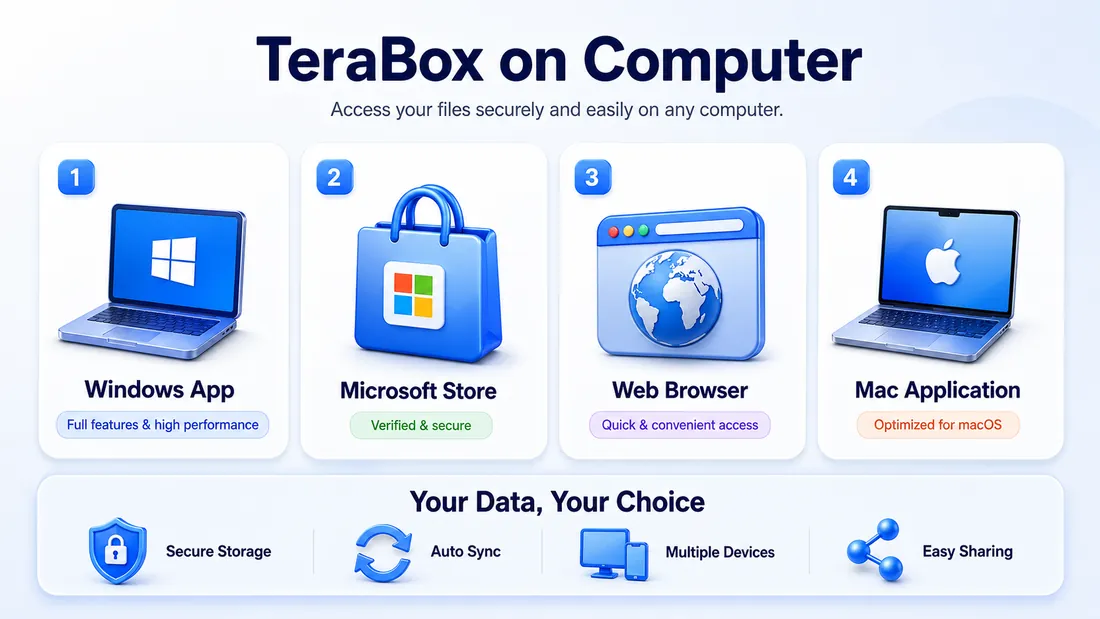
Official Windows Desktop Application
The desktop application is a practical choice for people who use TeraBox regularly on Windows. It provides a dedicated interface for browsing cloud folders, uploading files, downloading stored content, and managing an account without leaving a browser tab open.
Download the installer only from the official TeraBox website or an authorized listing. Avoid third-party pages that present Android APK files as Windows installers or distribute downloads through unrelated hosting accounts.
Microsoft Store Application
TeraBox also has an official listing on the Microsoft Store. This option is useful for users who prefer a store-managed installation and automatic application updates.
Microsoft recommends downloading Windows applications from trusted publishers and official retail sources. Microsoft Store apps may also update automatically when automatic app updates are enabled.
TeraBox Web Interface
The web interface lets users access TeraBox without installing desktop software. It can be useful on shared computers, school devices, workplace systems with installation restrictions, or when only occasional file access is required.
After signing in through the official website, users can browse folders, upload supported files, download stored content, and use the available sharing tools. TeraBox’s official materials identify desktop, mobile, and web access as supported options for file backup and sharing.
Official Mac Application
Mac users should install the supported Apple application rather than trying to open a Windows installer or Android APK. The current Apple listing states that the application requires macOS 10.14.0 or later, although compatibility requirements may change in future releases.
Which TeraBox PC Method Should You Choose?
|
Method |
Installation |
Performance |
Updates |
APK Support |
Best For |
|
Windows desktop app |
Required |
Native |
Through the official release method |
No |
Regular Windows use |
|
Microsoft Store |
Required |
Native |
Store-managed |
No |
Simple installation and updates |
|
Web interface |
Not required |
Browser-dependent |
Web service updates automatically |
No |
Quick or shared-computer access |
|
Mac application |
Required |
Native |
Official Apple method |
No |
Mac users |
|
Android emulator |
Required |
Uses more PC resources |
Depends on the installed Android app |
Yes |
Testing the Android interface |
For most Windows users, the official desktop app or Microsoft Store version will be the most suitable option. Choose the web interface when installing software is not possible or when using a shared computer. An Android emulator is only needed when you specifically want to run the Android APK on a PC.
How to Download and Install TeraBox on Windows
Method 1: Install from the Official TeraBox Website
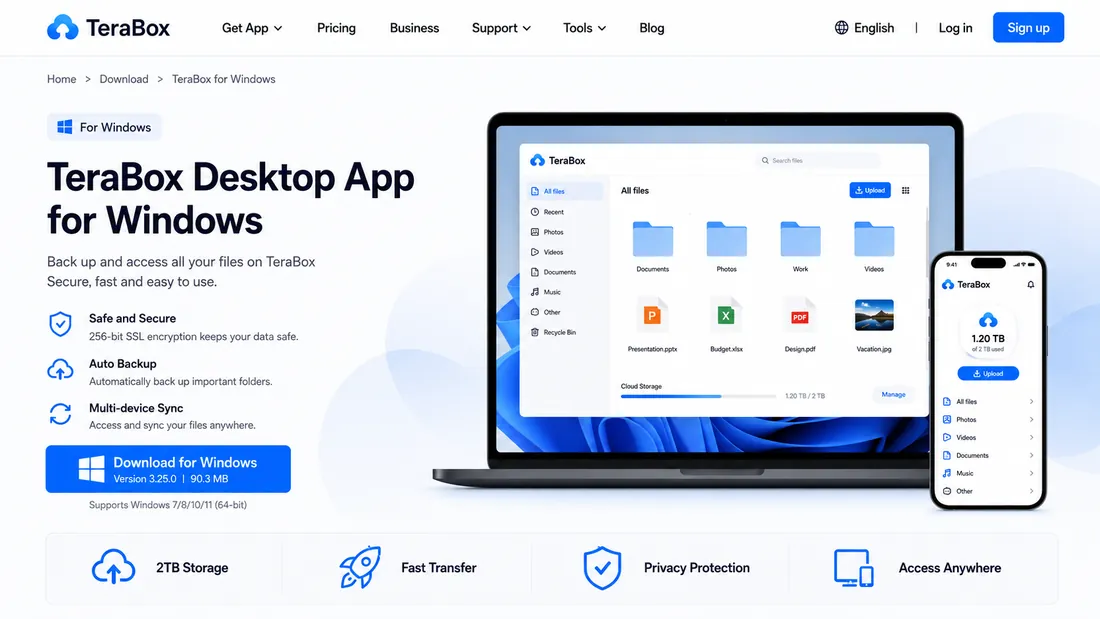
- Open the official TeraBox PC page.
- Select the Windows download option.
- Save the installer in a folder you can easily find.
- Verify that the file came from the expected website and publisher.
- Open the downloaded installer.
- Review the available setup options and continue with the installation.
- Launch TeraBox once the installation is complete.
- Sign in with your existing account or create a new one.
- Upload one non-sensitive test file.
- Confirm that the test file appears in your cloud account before uploading important content.
Windows may display a warning when an application is downloaded from outside the Microsoft Store. Do not dismiss the warning without checking the file first. Confirm that the installer came from an authorized source, as Microsoft recommends installing online programs only from trusted publishers and retail websites.
Method 2: Install from Microsoft Store

- Open the Microsoft Store from the Windows Start menu.
- Search for TeraBox for PC.
- Check the application listing and publisher details.
- Select Install or Get.
- Wait for Windows to finish the installation.
- Open the application and sign in with your TeraBox account.
The Microsoft Store may hide or block the installation if the application is unavailable in your region or incompatible with your device. If the installation still does not work after a Windows system update, restarting the computer may help resolve some Store-related issues.
How to Use TeraBox on PC Without Downloading It
You can access TeraBox on a PC through a web browser without installing the desktop application:

- Open the official TeraBox website in an updated browser.
- Select the sign-in option.
- Sign in with the same account connected to your mobile application.
- Open an existing folder or create a new one.
- Select the upload option and choose files from your computer.
- Open, share, or download your stored files as needed.
- Sign out after use if you are on a shared or public computer.
The browser method is convenient for quick access, although its performance may depend on the browser, installed extensions, connection quality, and the size of the files being transferred.
Avoid saving your account credentials on a public computer. Before leaving the device, make sure you have fully signed out of your TeraBox account.
How to Install and Use TeraBox on Mac
Mac users should download TeraBox through an authorized Apple listing or an official developer source.
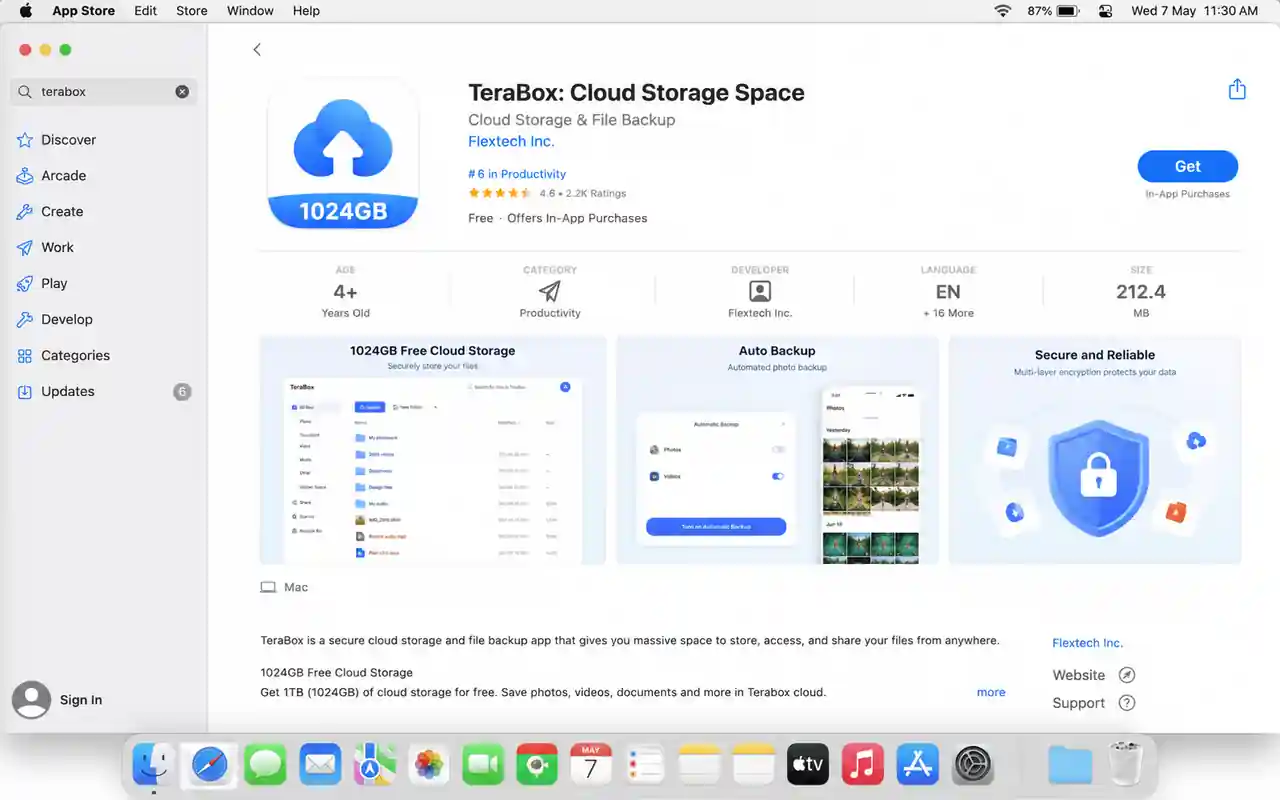
- Open the official Apple listing on your Mac.
- Confirm that the device meets the current macOS requirement.
- Download and install the application.
- Open TeraBox and sign in with the correct account.
- Check that your previously uploaded files appear.
- Upload a small test file before transferring larger folders.
Apple’s current listing supports Mac computers running macOS 10.14.0 or later. Apple also states that macOS checks applications downloaded outside the App Store for an identified Developer ID and signs that the software has been altered. Do not bypass an unidentified-developer warning unless you have independently confirmed the source and signing information.
Can TeraBox MOD APK Run on a PC?
A TeraBox MOD APK may run on a PC through an Android emulator or another compatible Android environment. However, it cannot be installed directly as a normal Windows desktop application because APK files are designed for Android-powered devices.
Using an emulator also requires more computer resources than the official Windows desktop app, Microsoft Store version, or web interface. For users who only want to upload, organize, share, or access cloud files, the official PC methods are more practical. An emulator is mainly relevant when someone specifically needs to test or use the Android application interface on a computer.

Can an APK Be Installed Directly on Windows?
No. An APK is the installable application format used by Android. It contains the code and resources an Android-powered device needs to install and run an application.
An APK is not a native Windows installer, such as a Microsoft Store application or a traditional Windows desktop setup file. Therefore, it cannot be installed directly on Windows as a standard PC program.
How an Android Emulator Works
An Android emulator creates a virtual Android system within Windows or macOS. Instead of installing the APK directly on the computer’s main operating system, the user installs and runs it inside this simulated Android environment.
This method can be useful for testing the Android interface on a computer. However, an emulator generally requires additional memory, processing power, and storage, making it less practical when the official desktop application or web interface already provides the required cloud-storage features.
Microsoft ended the availability of Windows Subsystem for Android and the Amazon Appstore through the Microsoft Store on March 5, 2025. As a result, a separate Android emulator is now the more practical option for users who specifically need to test an APK on current Windows systems.
Limitations of Using a MOD APK on PC
A modified Android package remains an unofficial third-party application, even when it is run through an emulator. It may require manual updates, cause login or synchronization problems, or request permissions that the official desktop application does not need.
Modifying an APK also does not guarantee access to account-controlled storage, Premium options, AI tools, or other server-based features. For this reason, users should avoid testing unfamiliar packages with an account that contains private, business, financial, or irreplaceable files.
For a more detailed explanation of modified application packages, refer to our TeraBox MOD APK breakdown.
TeraBox for PC Requirements and Account Synchronization
Exact system requirements may change between releases, so review the current official listing before installing the application.
In general, users need:
- A supported version of Windows or macOS
- Enough storage for the application and temporary files
- A stable internet connection
- Permission to install software
- An updated web browser for browser access
- Access to the correct TeraBox account
- Additional RAM and processing resources when using an emulator
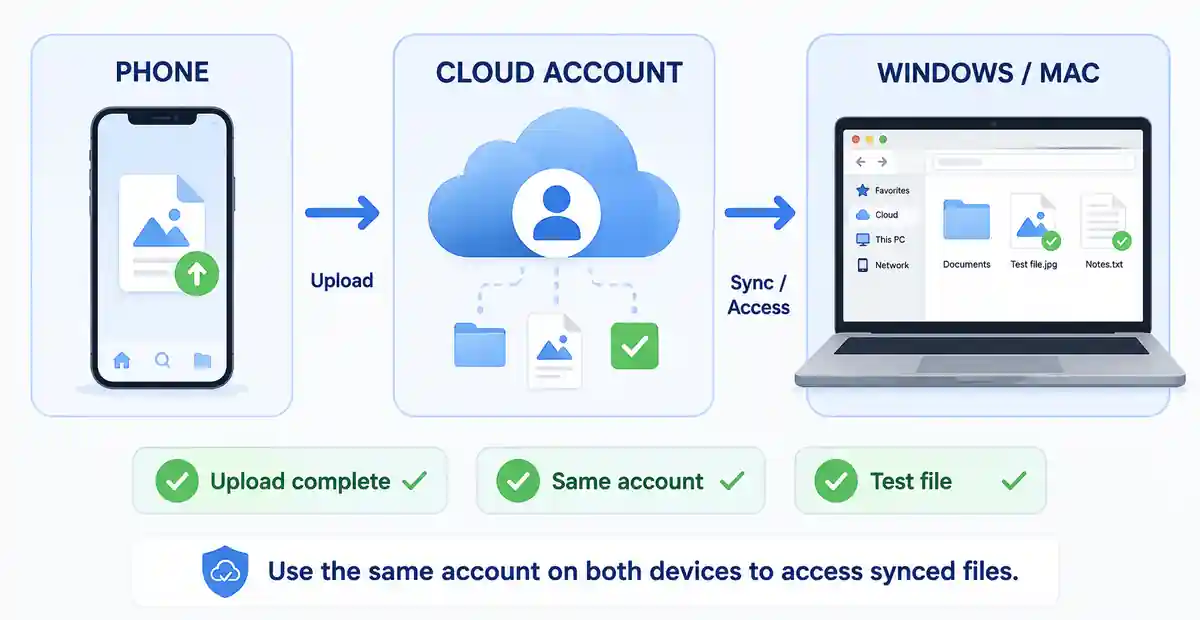
To access files uploaded from a phone on a PC, sign in with the same TeraBox account on both devices. Make sure the mobile upload has finished, then open the correct cloud folder through the desktop application or web interface.
Open and test an uploaded file on both devices before deleting the original local copy. TeraBox describes its service as supporting synchronization and access through computers, tablets, phones, and the web.
Useful TeraBox Features for PC Users
Upload Files from a Computer
Users can upload documents, photos, videos, audio, and other supported files from a computer to cloud storage. Upload speed and performance may vary depending on the file size, network quality, and service conditions.
Organize Cloud Folders
Creating separate folders for work, study, personal media, and backups can make a large cloud library easier to manage. Use clear, descriptive file names so important content is easier to find later.
Access Files Across Devices
Files that have successfully synchronized can be opened through other supported devices signed in to the same TeraBox account.
Share Files and Folders
TeraBox includes file-sharing tools that allow users to distribute supported content without attaching large files to an email. Always review the link-access settings before sharing confidential material.
Preview Supported Media
Supported files may be opened or previewed through the desktop application or web interface. Availability may vary depending on the file format, application version, account plan, and browser.
Back Up Selected PC Folders
TeraBox may be used to upload selected folders containing documents, photos, or other important files. However, uploading individual folders is not the same as creating a complete system image or full disaster-recovery backup.
Keep another independent copy of irreplaceable data and make sure every upload has finished successfully.
How to Update or Uninstall TeraBox
Updating TeraBox
TeraBox installations downloaded through the Microsoft Store can receive store-managed updates. If the application was installed from the official website, use its built-in update option or visit the official PC page to check for the latest available release.
Avoid update popups that redirect you to unrelated websites or ask you to download an unfamiliar installer.
Uninstalling TeraBox
On Windows, open Settings → Apps → Installed apps, locate TeraBox, and select Uninstall. Microsoft also allows users to remove programs through the Start menu or Control Panel.
On Mac, close TeraBox and remove it using the standard macOS application-management process.
Uninstalling the desktop application does not normally delete files already stored in the online account. Before removing the app, check for incomplete uploads and review any local offline copies you may still need.
Common TeraBox PC Problems and Fixes
The table below covers quick PC-specific checks. For step-by-step fixes — including login and sync problems — see our complete TeraBox troubleshooting guide.
|
Problem |
What to Check |
|---|---|
|
Installer will not open |
Confirm that the download finished successfully and came from the expected source. |
|
Installation is blocked |
Review the publisher details, installation permissions, device compatibility, and security warning. |
|
Application will not launch |
Restart the PC, check for available updates, or reinstall the application from an authorized source. |
|
Login fails |
Check the sign-in method, account credentials, verification requirements, and internet connection. |
|
Files do not synchronize |
Confirm that you are using the correct account, the upload has finished, the network is working, and the correct folder is open. |
|
Upload remains pending |
Check the internet connection, file size, browser, and application status. |
|
Transfer speed is slow |
Review the network quality, file size, congestion, and current service conditions. |
|
Files appear missing |
Check the account, cloud folders, filters, and synchronization status. |
|
Browser upload fails |
Update the browser and review installed extensions, cached data, and the internet connection. |
|
Emulator is slow |
Close unnecessary programs and check the available RAM, processor resources, and virtualization settings. |
|
Duplicate files appear |
Look for repeated uploads, copies stored in multiple folders, or synchronization conflicts. |
|
Security software blocks the installer |
Verify the download source and publisher before taking any further action. |
Do not whitelist an unfamiliar installer or disable security protection simply to complete the installation.
Safety and Privacy Tips for PC Users
Download TeraBox only from the official website, Microsoft Store, or another authorized application listing. Always verify the publisher before opening an installer.
Protect your account with a strong, unique password. For a deeper look at TeraBox’s encryption and data practices, read our TeraBox privacy and safety review. When using TeraBox on a shared or public computer, avoid saving your login credentials and make sure you sign out before leaving the device.
Confirm that every cloud upload has finished before deleting the original local file. Keep a separate backup of any personal, business, or irreplaceable data.
Windows recommends downloading programs only from trusted publishers. macOS also checks applications obtained outside the App Store for an identified developer and signs that the software may have been altered.
Frequently Asked Questions
Final Verdict
For regular use on Windows, choose the official TeraBox desktop application or the version available through the Microsoft Store. Use the web interface when you cannot install software or only need occasional access. Mac users should install the supported Apple application.
An Android emulator is only worth using when you specifically need to test the Android interface or run an APK on a computer. It requires more system resources and does not convert a modified package into an official Windows application.
Whichever method you choose, download TeraBox from an authorized source, sign in with the correct account, and test synchronization with a non-sensitive file. Keep a separate backup of any important or irreplaceable data.