
TeraBox for iOS: Download and Use on iPhone & iPad
TeraBox for iOS lets you store, upload, organize, and access cloud files directly from an iPhone or iPad. You can install the official app through the Apple App Store, or use the TeraBox web interface if you’d rather not install anything.
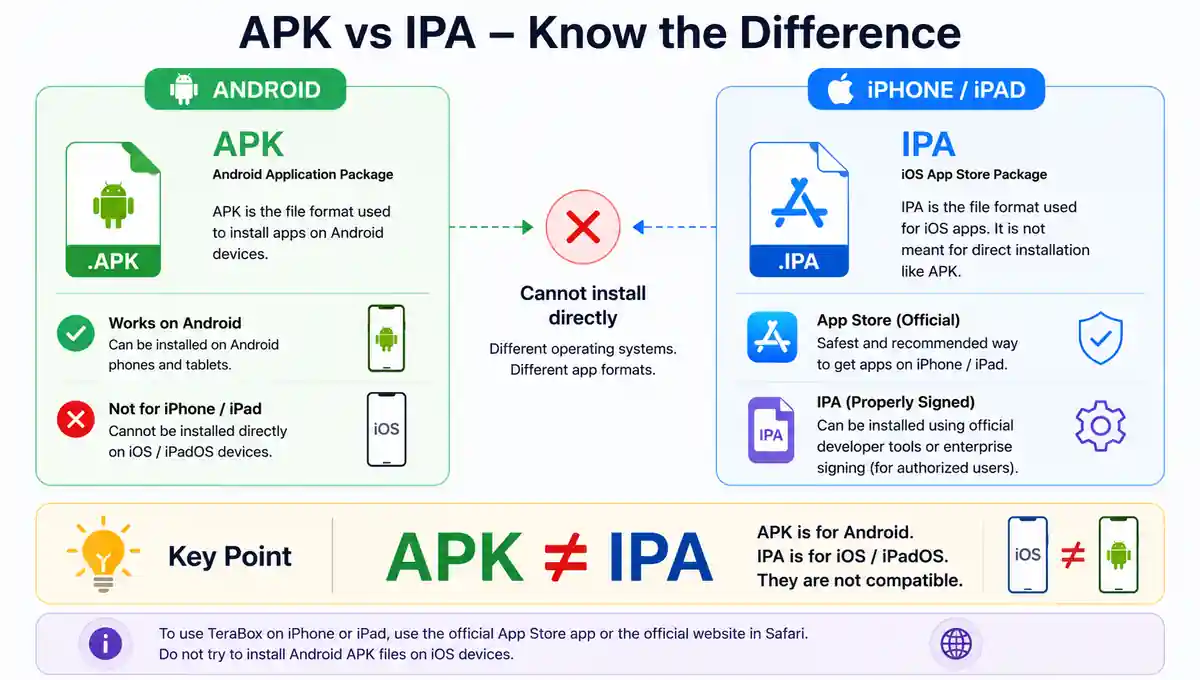
An Android APK cannot be installed directly on an iPhone or iPad, since APK files are built specifically for Android devices. This guide walks you through installing TeraBox, backing up photos and videos, managing app permissions, controlling local storage, understanding IPA files, fixing common problems, and managing your Apple subscription.
TeraBox for iOS Quick Information
|
Information |
Details |
|---|---|
|
Supported devices |
iPhone and iPad |
|
Official installation |
Apple App Store |
|
Official provider |
Flextech Inc. |
|
Current iPhone requirement |
iOS 15.0 or later |
|
Current iPad requirement |
iPadOS 15.0 or later |
|
Free storage advertised |
1024GB after registration |
|
In-app purchases |
Available |
|
Browser access |
Available through the web interface |
|
Native APK support |
No |
|
iOS application package |
IPA |
The current App Store listing identifies Flextech Inc. as the provider and confirms support for both iPhone and iPad. It currently requires iOS 15.0 or later on iPhone and iPadOS 15.0 or later on iPad. The listing also advertises 1024GB of free cloud storage after registration and includes in-app purchases. Compatibility, app size, and other listing details may change with future releases.
What Is TeraBox for iOS?
TeraBox for iOS is the iPhone and iPad version of the TeraBox cloud storage service. It lets you upload files from your Apple device and access files previously stored through another connected phone, tablet, computer, or web browser.
Your uploaded files are stored in your online TeraBox account rather than only in your device’s internal storage. When you use the same account across multiple devices, successfully synchronized files become accessible on all of them.
The official App Store description promotes automatic backup for photos, videos, documents, and folders. It also describes multi-device synchronization and access from mobile devices and computers. TeraBox offers a free storage allowance alongside optional paid plans and in-app purchases.
Ways to Use TeraBox on an iPhone or iPad
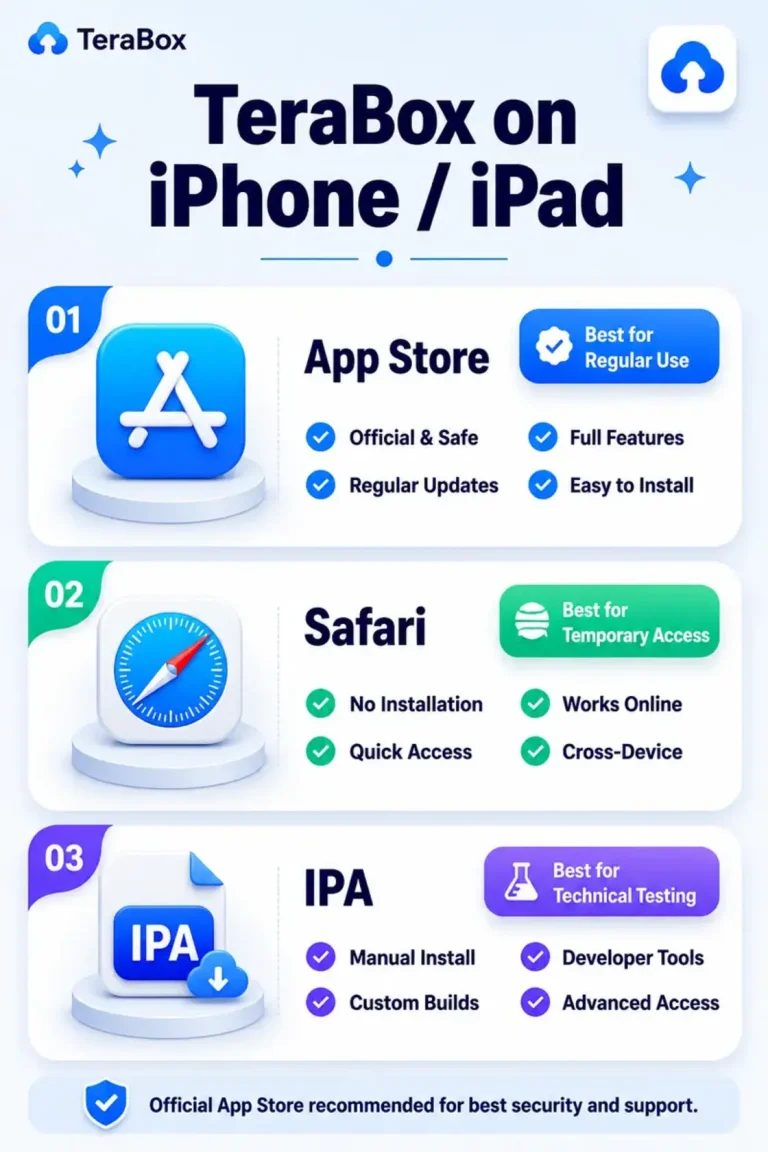
Official App Store Application
The official App Store app is the most practical option for regular use. It gives you direct access to photo backup, file uploads, downloads, cloud folders, sharing tools, and other features available to your account.
Installing through the App Store also means you get Apple-managed app updates. Before downloading, confirm that the listing shows Flextech Inc. as the provider, and review the current compatibility, privacy, and in-app purchase information.
Safari Web Interface
You can also access TeraBox through Safari without installing the app, making it useful for temporary access, shared devices, or situations where you don’t want to install the application. You can sign in with your existing account to upload, download, and manage supported files through the web interface. A complete Safari walkthrough is provided later in this guide.
Sideloaded IPA File
An IPA is an iOS application file. According to Apple’s developer documentation, an exported iOS app can use the .ipa filename extension and can be installed on eligible devices through supported development or device-management methods.
A sideloaded IPA doesn’t come from the App Store automatically. Its reliability depends on who created or modified the package, how it was signed, and how it’s distributed — which makes sideloading more complex than installing the official app.
App Store App vs Browser vs IPA
|
Method |
Official route |
Installation |
Photo backup |
Update method |
Best for |
|
App Store app |
Yes |
Required |
Available with permission |
App Store |
Regular iPhone and iPad use |
|
Safari web access |
Official service access |
Not required |
More limited than the app |
Web interface updates automatically |
Temporary access |
|
Sideloaded IPA |
Depends on the package |
Advanced |
Package-dependent |
Usually manual |
Technical testing |
For most people, the official App Store app is the best option. Safari works well when you only need browser access, while a sideloaded IPA requires more technical management and shouldn’t be treated as an equal replacement for the verified App Store listing.
How to Download and Install TeraBox on iPhone or iPad
Follow these steps to install the official app:
- Open the App Store on your iPhone or iPad.
- Use the Search tab to look for TeraBox.
- Open the listing and confirm that the provider is Flextech Inc.
- Tap Get.
- Authenticate the download with Face ID, Touch ID, or your Apple Account password.
- Wait for the installation to finish.
- Open TeraBox.
- Create an account or sign in to your existing account.
- Upload one non-sensitive test file.
- Confirm that the file appears in your cloud account.
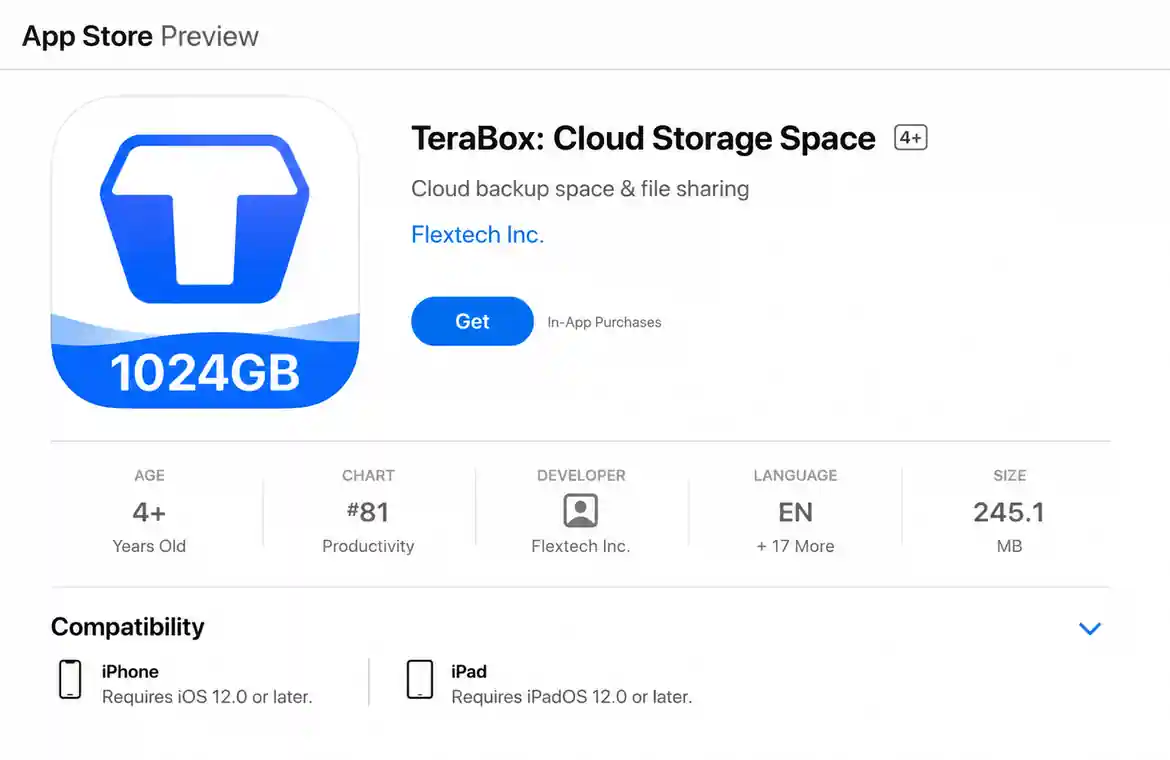
Apple explains that free apps display a Get button and that you may need Face ID, Touch ID, or an Apple Account password to authenticate the download. A free app may still offer optional subscriptions or in-app purchases.
Review the product page before downloading. Check the provider, compatibility, privacy information, recent updates, and in-app purchase details rather than relying on a download button from an unrelated website.
How to Use TeraBox on iPhone Without Installing the App
You can use TeraBox through Safari when you don’t want to install the app:
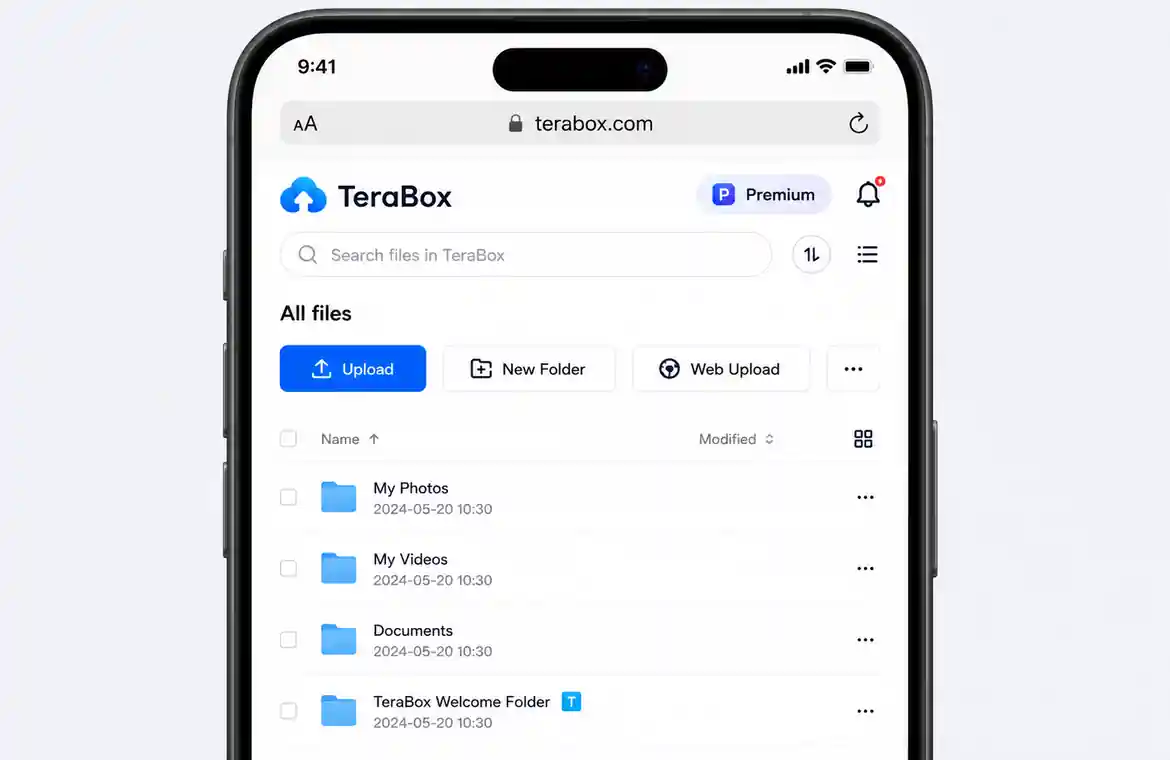
- Open Safari.
- Visit the official TeraBox website.
- Select the sign-in option.
- Use the same account connected to your other devices.
- Open an existing cloud folder.
- Upload, download, or manage files where the mobile interface supports those actions.
- Wait for any active transfer to finish before closing the browser.
- Sign out when using a shared device.
TeraBox supports web-based account access, and its official materials describe cloud access through mobile apps, computers, and the web.
The Safari method may not offer the same background backup experience as the installed app. Browser performance can also depend on your connection, device storage, selected file, and current Safari session.
How to Back Up iPhone Photos and Videos to TeraBox
You can use the official app to upload photos and videos from your iPhone or iPad:
- Install and open TeraBox.
- Sign in to the correct account.
- Open the backup or upload area.
- Allow the level of Photos access needed for the media you want to upload.
- Select automatic backup or choose files manually where available.
- Keep the device connected to a stable network during the first large upload.
- Check the upload status before closing the app.
- Open your account on another device and confirm that the files appear.
- Don’t delete the original files until the upload has been verified.
The current App Store description promotes automatic backup for photos, videos, documents, and folders. It also states that backed-up files can be kept synchronized and accessed from mobile devices or computers.
Uploading files to cloud storage isn’t the same as confirming a complete backup. Always test important files before removing their original local copies.
Manage TeraBox Permissions on iPhone and iPad
Photos
TeraBox needs access to selected photos or your photo library when you want to upload images and videos. Choose the level of access that matches how you plan to use the app.
You don’t need to grant full photo-library access when you only want to upload a small number of selected files. Review the permission again if your backup needs change.
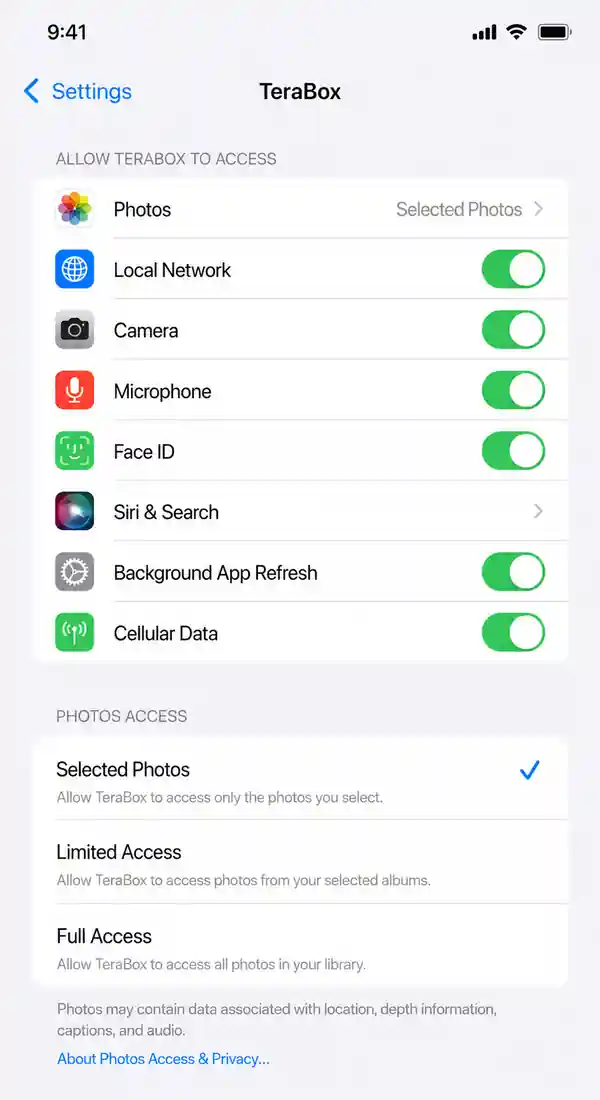
Cellular Data
Large photo and video uploads can use a significant amount of mobile data. You can restrict TeraBox to Wi-Fi if you don’t want cloud transfers using your cellular plan.
Check that cellular access is enabled if uploads work on Wi-Fi but stop when you switch to mobile data.
Background App Refresh
Background App Refresh can help an app continue certain activity when it’s not open on the screen. However, iOS can still limit background behavior based on battery conditions, network availability, and system management.
For a large first backup, keep TeraBox open until you confirm that the most important uploads have finished.
Notifications
Notifications are optional unless you want alerts about transfers, account activity, or other app messages. Disable notifications you don’t find useful instead of granting them automatically.
Contacts
Only allow contact access when you use a feature that genuinely requires it. File sharing through links doesn’t always require access to your complete contact list.
The App Store privacy label currently reports that contacts may be collected without being linked to your identity for app functionality. Privacy behavior may vary depending on the features you use.
Why TeraBox Uses iPhone Storage
TeraBox is a cloud storage app, but it can still use local device storage. Local space may be used for:
- Downloaded files
- Offline content
- Cached images and previews
- Temporary upload data
- Saved videos
- General app data
A file stored in the cloud doesn’t automatically use zero space on your iPhone. When you download a file, save a video locally, or make content available offline, that content can occupy internal storage.
TeraBox introduced an iOS cache-cleanup feature that lets you remove cached data through the app’s settings. Its published instructions direct you to your profile, Settings, and the cache-cleanup option. The location or wording of this setting may change in newer releases.
Clearing cache can reduce temporary app data, but it may not remove files you intentionally downloaded or saved to your device. Review offline and local content separately before assuming that a cache cleanup will recover all your space.
Can TeraBox MOD APK Run on iOS?
APK vs IPA
No, a TeraBox APK cannot be installed directly on an iPhone or iPad. Android’s official documentation defines an APK as the package Android-powered devices use to install an Android app.
Apple devices use iOS and iPadOS applications instead. An exported iOS application may use the .ipa filename extension, but an IPA still needs valid signing and a supported installation route.
What Is a Modified IPA?
A modified IPA is an iOS application package that’s been changed outside the normal App Store release process. These changes may affect the interface, advertisements, local behavior, permissions, or other parts of the package.
Because it’s no longer the standard App Store build, you may not receive normal App Store updates or support. The package may also require separate signing, developer settings, or periodic reinstallation.
Limitations of a TeraBox MOD IPA
A modified IPA doesn’t guarantee unlimited cloud storage or access to every Premium feature. Storage limits, subscriptions, and other benefits may be controlled by the TeraBox account and its servers rather than only by the installed application.
Other possible limitations include:
- Manual installation and updating
- Signing certificate expiration
- The app no longer opening after a certificate is revoked
- Unknown changes to permissions or code
- Login and synchronization problems
- No normal App Store update process
- Account and privacy risks
Avoid using an unfamiliar modified IPA with an account that contains private, financial, work-related, or irreplaceable files.
For broader information about Android modifications, features, and limitations, read our Android MOD APK guide.
Access TeraBox Files Across iPhone, iPad and PC
Use the same TeraBox account on each device when you want to access synchronized files:
- Sign in on your iPhone or iPad.
- Confirm that the original upload finished.
- Open TeraBox on your second device.
- Sign in using the same method and account.
- Open the correct cloud folder.
- Refresh the file list when needed.
- Test the file before removing its original copy.
The official App Store description states that TeraBox supports multi-device synchronization and access from computers, tablets, and mobile phones. The official website also promotes backup and sharing through desktop apps, mobile apps, and the web.
For complete Windows and Mac guidance, read the TeraBox for PC guide.
How to Update, Remove or Cancel TeraBox
Update the App
Open the App Store, tap your account image, and review available app updates. Install the current TeraBox update when one is available for your device.
Updates may include interface changes, fixes, compatibility improvements, or feature changes. Check the current App Store listing instead of relying on a version number published on a third-party download page.
Remove TeraBox
To delete the app:
- Touch and hold the TeraBox icon.
- Tap Remove App.
- Tap Delete App.
- Tap Delete to confirm.
Apple documents this process for removing applications from an iPhone or iPad.
Deleting the app doesn’t normally delete files that have already been stored in your online TeraBox account. However, check unfinished uploads, downloaded files, and offline content before removing it.
Cancel an Apple Subscription
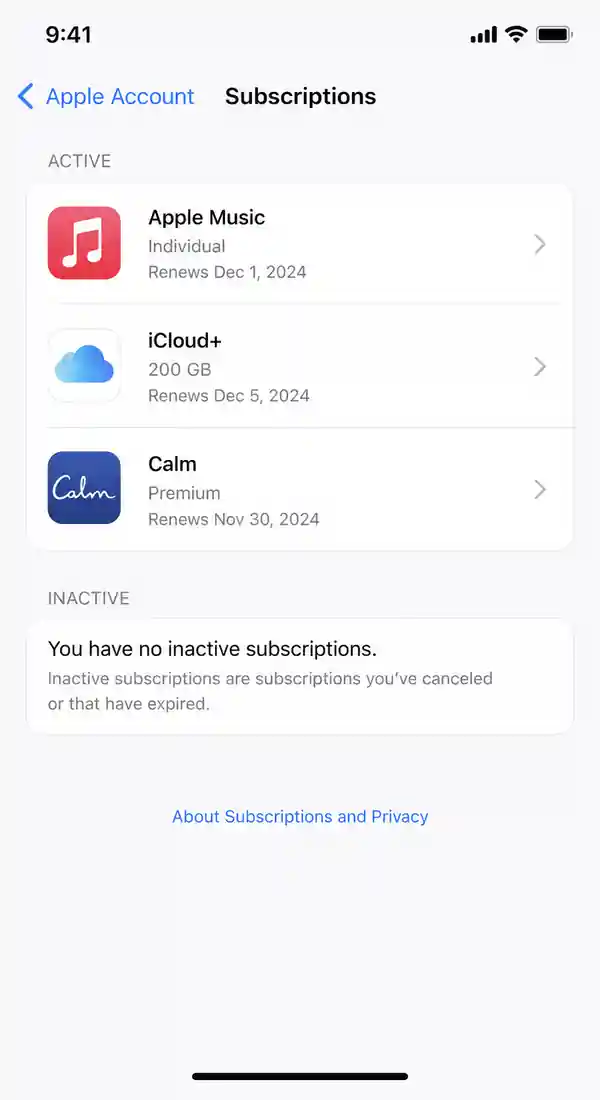
Deleting TeraBox doesn’t automatically cancel an in-app subscription. Apple specifically warns that removing an app doesn’t cancel its subscriptions.
To cancel a subscription billed through Apple:
- Open Settings.
- Tap your name.
- Tap Subscriptions.
- Select TeraBox.
- Tap Cancel Subscription.
When no Cancel Subscription button appears, the subscription may already be canceled or expired.
Common TeraBox iOS Problems and Solutions
The table below covers common iOS-specific checks. For detailed step-by-step troubleshooting — including login and sync fixes — visit our full troubleshooting guide.
|
Problem |
What to check |
|---|---|
|
App Store installation is unavailable |
Region, Apple Account, device compatibility, and iOS or iPadOS version |
|
App will not open |
Restart the app, update it, restart the device, or reinstall it |
|
Photos will not upload |
Photos permission, connection, available storage, and correct account |
|
Upload stops in the background |
Network, Background App Refresh, battery conditions, and app activity |
|
Files do not appear on another device |
Correct account, completed upload, cloud folder, and synchronization |
|
TeraBox uses too much local storage |
Downloaded files, offline content, saved media, and cached data |
|
Safari upload fails |
Browser session, connection, file selection, and available device storage |
|
Login fails |
Sign-in method, credentials, verification, and network connection |
|
Sideloaded IPA stops opening |
Signing certificate, installation status, and package source |
|
Subscription renews after deleting the app |
Cancel it separately through Apple Subscriptions |
When an iOS app becomes unresponsive, common first steps include closing and reopening it, restarting the device, checking for updates, and reinstalling the app when necessary.
Don’t remove local originals or reset your account while uploads remain incomplete. Start with a non-sensitive test file before making larger changes.
Privacy and Safety on iPhone and iPad
Download TeraBox through the official App Store listing and confirm that Flextech Inc. is shown as the provider. Avoid download pages that present a Dropbox file, unknown configuration profile, or modified IPA as though it were the official Apple release.
Review the App Privacy section before installing. For a full look at how TeraBox handles encryption and data across all platforms, see our TeraBox safety and privacy guide. Apple currently reports that the developer says usage data may be used to track you across other companies’ apps and websites. The label also says contact information, user content, identifiers, and usage data may be collected and linked to your identity. Contacts, some usage data, and diagnostics may be collected without being linked to your identity.
Apple states that this privacy information was provided by the developer and hasn’t been verified by Apple. The practices may also vary based on the features you use or your age.
Use these precautions:
- Grant only the permissions needed for the features you use.
- Review photo access before enabling automatic backup.
- Don’t enter your main Apple Account credentials into an unfamiliar sideloading tool.
- Don’t trust an unknown configuration profile automatically.
- Keep another copy of files that cannot be replaced.
- Confirm uploads before deleting local originals.
- Avoid unofficial packages when handling confidential files.
- Manage paid subscriptions through the service that bills you.
No cloud storage app should be described as completely risk-free or perfectly private. Review the current privacy policy, app permissions, account settings, and the sensitivity of your files before deciding what to upload.
Frequently Asked Questions
Final Verdict
For normal iPhone or iPad use, install TeraBox through the official Apple App Store and confirm that Flextech Inc. is shown as the provider. Use Safari when you only need temporary access and don’t want to install the app.
Review photo, contact, cellular data, notification, and background permissions before enabling them. Confirm that important uploads appear on another device before deleting local originals, and keep an independent backup of files you cannot replace.
An Android APK cannot run directly on iOS. A sideloaded or modified IPA is more complex, may require manual signing and updating, and doesn’t guarantee unlimited storage or Premium access. Avoid unfamiliar modified packages when your account contains sensitive or important data.