
Why Is TeraBox Not Working? Common Problems and Fixes
Several things can cause TeraBox to stop working — a temporary service interruption, an unstable internet connection, an outdated app, low device storage, blocked permissions, account confusion, or a problem with one specific file or shared link.
The right fix depends on where the problem actually starts. Reinstalling the app right away might not solve anything, and it can wipe out locally stored app data instead. Start by figuring out whether the issue affects the entire TeraBox service, just one device, one network, one account, or only a single file.
This guide walks you through fixing TeraBox login errors, app crashes, failed uploads, stuck downloads, video playback problems, missing files, broken shared links, and browser issues — across Android, iPhone, iPad, Windows, and the web.
Quick Answer: Why Is TeraBox Not Working?
TeraBox usually stops working for one of these common reasons: a temporary service problem, an unstable network, an outdated app, corrupted temporary data, low local storage, restricted permissions, or an incorrect login method.
Start with these basic checks:
- Close and reopen TeraBox
- Test TeraBox in a web browser
- Switch between Wi-Fi and mobile data
- Restart your device
- Update the TeraBox app
- Confirm your device has free storage
- Check app permissions
- Verify you used the original sign-in method
Don’t clear all app storage or reinstall TeraBox until you’ve confirmed your important uploads finished and you know how to access the correct account.
TeraBox Troubleshooting Quick Check
|
Symptom |
Most likely area to check first |
|---|---|
|
App will not open |
App update, restart, cache or device storage |
|
Login fails |
Credentials, original login method or service availability |
|
Upload is stuck |
Network, permissions, storage or the selected file |
|
Download fails |
Network, local storage or file availability |
|
Video keeps buffering |
Connection, app player or source file |
|
Website does not load |
Browser, network or service availability |
|
Shared link fails |
Incomplete, expired, restricted or deleted link |
|
Files are missing |
Account, folder, permissions, backup status or Recycle Bin |
|
App works but website fails |
Browser cookies, extensions or site data |
|
Website works but app fails |
App session, cache, permissions or app version |
Don’t try every possible fix at once — instead, focus on identifying exactly which part of the service is actually failing.
First Check: Is TeraBox Down or Is the Problem Local?
Before you start changing app settings, check whether the problem only affects your device.
Open the official TeraBox website in a browser. If both the website and mobile app fail, test another device or network. If TeraBox works on mobile data but not on Wi-Fi, your router, internet provider, DNS configuration, or network restrictions are probably causing the issue.
If the website works but the app doesn’t, focus on the app version, cache, permissions, available storage, and your account session. And if only one file or shared link fails, the entire service probably isn’t down.
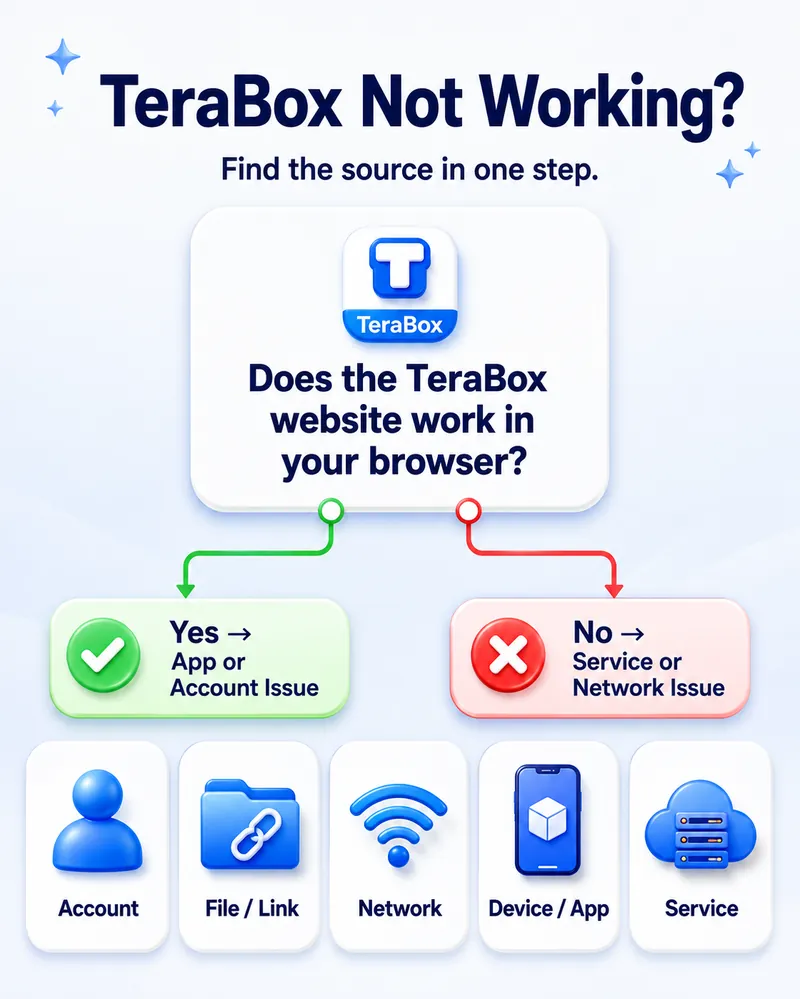
Follow this diagnosis sequence:
|
Test |
What the result may indicate |
|---|---|
|
App and website fail on multiple devices |
Possible service or wider network problem |
|
Website works but mobile app fails |
App, cache, update, permission or session problem |
|
The app runs fine on cellular data, yet Wi-Fi connections cause it to fail |
Router, ISP, DNS or network restriction |
|
Another account works |
Account-specific or authentication problem |
|
Only one upload or download fails |
File-specific, link or storage problem |
|
Your files show up on the website but don’t appear inside the app |
App synchronization or account-session problem |
|
Only an unofficial modified app fails |
Package-specific problem |
A third-party status website can offer an extra signal, but it can’t confirm whether every TeraBox server, region, or feature is running normally. Testing the official website on another device and network usually gives you a more reliable answer.
Try These General Fixes First
Start with the least destructive troubleshooting steps before you clear any data or reinstall anything.
Close and Reopen TeraBox
Fully close the app instead of just returning to the home screen, then reopen it and test the same action again.
A temporary process or a failed session can sometimes stop a screen, upload, or login request from responding correctly.
Restart Your Device
Restarting your device can clear temporary memory problems, stopped background services, and network-session errors.
Both Google and Apple recommend restarting your device as one of the first steps when an installed app won’t open, respond, or work correctly.
Change the Internet Connection
Switch from Wi-Fi to mobile data, or from mobile data to a trusted Wi-Fi network.
If TeraBox works on one network but not another, don’t reinstall the app. Instead, restart your router, check whether other websites load, and review any network, firewall, DNS, or parental-control restrictions.
Update TeraBox
Install the latest official version for your device. An outdated build can run into compatibility problems with updated operating systems, login services, or server-side features.
TeraBox’s own troubleshooting guidance recommends checking your network, updating or reinstalling the app, clearing temporary cache, restarting your device, and contacting support if login problems continue.
Check Local Device Storage
Cloud storage and free device storage aren’t the same thing.
You might have plenty of space in your TeraBox account but not enough space on your phone or computer to:
- Download a cloud file
- Prepare a file for upload
- Install an app update
- Store temporary playback data
- Extract an archive
- Save an offline copy
Free up some local space, then try the failed action again.
Review Permissions
TeraBox needs permission to access selected photos, videos, files, or folders. If you’ve blocked or limited that access, uploads and automatic backups can end up incomplete.
On recent iOS versions, an app may only have access to selected photos rather than your entire photo library. TeraBox’s own guidance suggests checking whether you granted access to all photos or just part of your library if files appear to be missing.
Clear Temporary Cache Where Supported
On Android, clearing the app cache removes temporary data only. Clearing storage or app data is different — it resets the app completely and can wipe out locally stored information or settings.
Google explains that clearing cache deletes temporary data, while clearing storage permanently deletes the app’s locally stored data.
Don’t look for a universal Android-style “Clear cache” option on iPhone or iPad — it doesn’t exist there. Apple’s standard troubleshooting path instead has you close the app, restart your device, check for updates, and only delete and redownload the app if earlier steps don’t work.
Sign Out and Back In Carefully
Only sign out after you’ve confirmed the exact account and login method you originally used.
You may have registered through:
- Phone number
- Apple ID
Logging in through a different method can open a completely separate account and make your original files look like they’ve disappeared.
Repair or Reinstall as a Later Step
Reinstall the app once you’ve confirmed the installation is corrupted or an update didn’t complete correctly — not as your first move.
Before you reinstall, make sure your important files finished uploading and that you can log back into the correct account.
TeraBox App Will Not Open, Freezes or Keeps Crashing
The right steps depend on your operating system.
Fix TeraBox Not Working on Android
Try these actions in order:
- Open recent apps and close TeraBox
- Restart your Android device
- Update TeraBox through Google Play
- Install any available Android system updates
- Confirm your phone has free storage
- Open Settings > Apps > TeraBox and choose Force stop
- Open Storage and cache, then clear the cache
- Test the app again
- Clear complete app storage only after confirming your account and uploaded files
- Reinstall the official app from Google Play if the problem continues
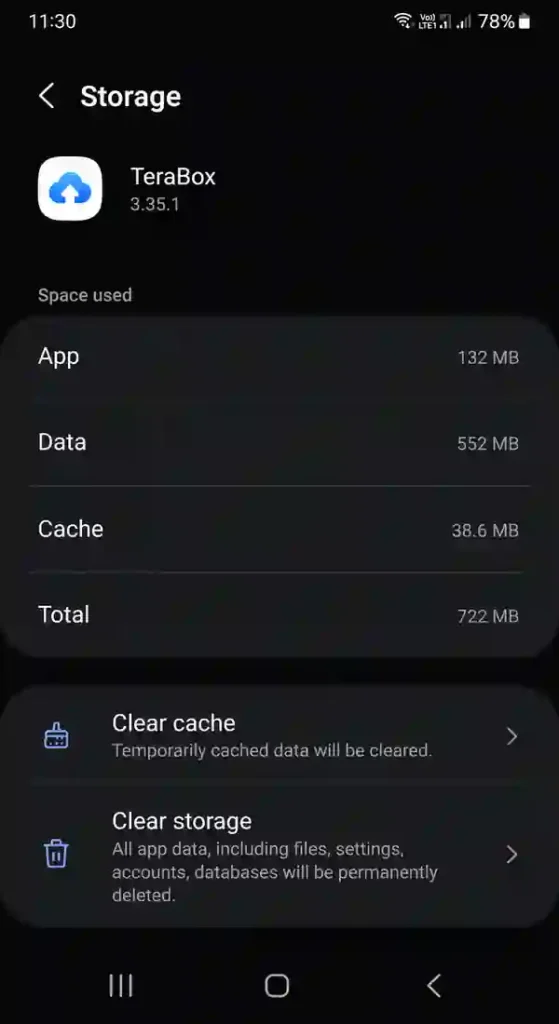
Menu names vary by phone manufacturer and Android version. Google recommends restarting, updating, force stopping, clearing cache or app data, and reinstalling when an installed Android app won’t open or respond — and it warns that uninstalling removes any data saved locally inside the app.
Don’t install a random APK just because the official app crashes — a modified or outdated package can introduce a completely different problem. If you’re specifically looking into MOD APK builds, read our TeraBox MOD APK guide first to understand the risks.
Fix TeraBox Not Working on iPhone or iPad
Follow this order — for complete setup and permission guidance, see our TeraBox for iOS guide.
- Force close TeraBox and reopen it
- Restart your iPhone or iPad
- Open the App Store and check for a TeraBox update
- Install any available iOS or iPadOS updates
- Check your available device storage
- Review Photos, mobile data, and notification permissions
- Test the TeraBox web version in Safari
- Delete and redownload the app only after verifying your account and completed uploads
Apple warns that deleting an app can remove data stored locally inside it, so confirm your important content has already reached your cloud account before you remove the app.
Fix TeraBox Not Working on Windows
Start with these checks — for full installation and setup steps, see our TeraBox for PC guide.
- Exit TeraBox completely, including its system-tray process
- Restart Windows
- Test the TeraBox website in a browser
- Check your internet connection
- Install any available TeraBox and Windows updates
- Confirm the destination drive has free space
- Review firewall or security notifications without permanently disabling protection
- Use Windows Repair or Reset only when that option appears for the app
- Reinstall TeraBox from its official source if other steps fail
Microsoft notes that you can repair some Windows apps through Settings, though the Repair, Change, or Modify options don’t appear for every program.
If the web version works fine but the desktop client keeps failing, use the browser temporarily while you repair or reinstall the app.
TeraBox Login Is Not Working
A TeraBox login failure doesn’t always mean you typed the wrong password.
Possible causes include:
- Incorrect email address
- Incorrect password
- Wrong social-login method
- A second TeraBox account
- An expired app or browser session
- Blocked cookies
- A verification message landing in Spam or Promotions
- A temporary service issue
- An Apple ID login-method limitation on Android or Windows
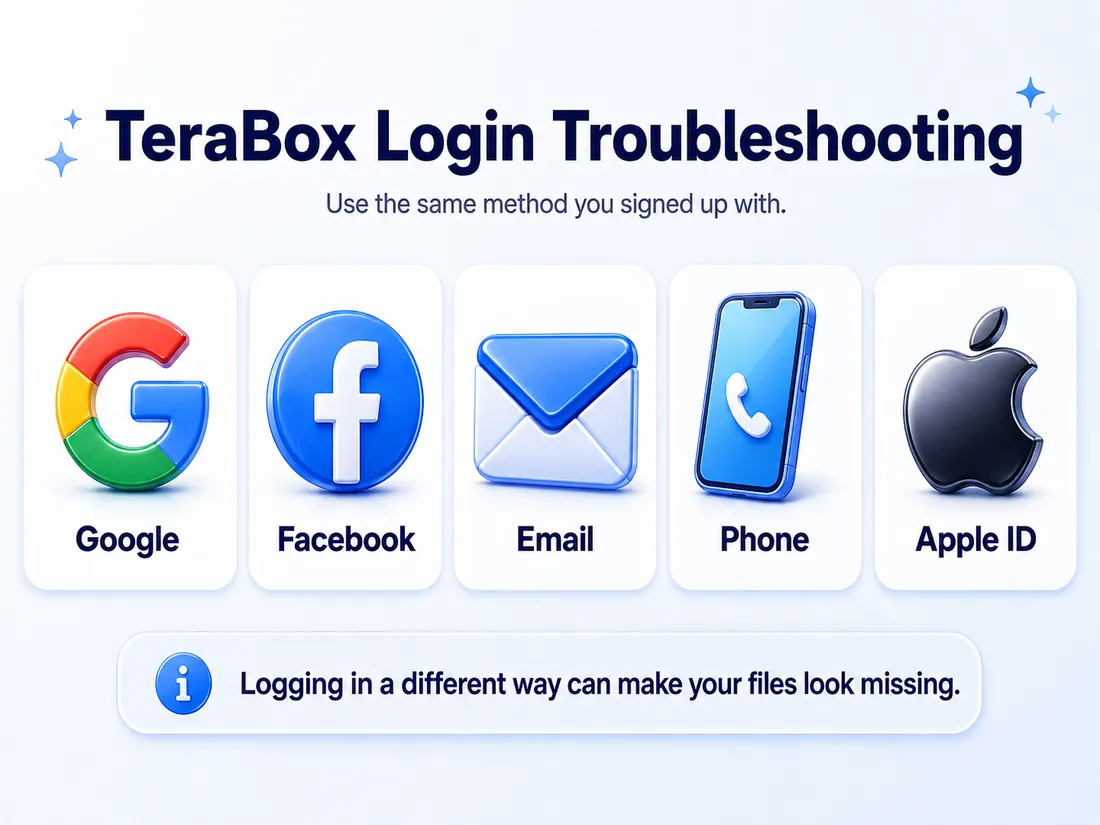
Check the Original Sign-In Method
Use the same method you chose when you first created your account.
For example, if you registered through Google, you should log in through the Google login option — not by typing your Gmail address into a separate email-password form.
TeraBox’s official registration guidance states that you must access accounts registered through Google, Facebook, or Apple ID through their matching login portals.
Check Apple ID Login Compatibility
TeraBox’s official login guide lists Google, Facebook, mobile number, and email as login options for Android and Windows users, and adds Apple ID as an extra method for Apple users. This means an account that relies only on Apple ID might not offer the same direct login option on Android or Windows.
Use an Apple device instead, or try another login method already connected to the same account. Avoid creating a new account unless you understand it may not contain your existing files.
Check for Multiple Accounts
You might have accidentally created more than one account using:
- Different email addresses
- Google and email login separately
- Facebook and Google separately
- Apple ID and another provider
- Apple’s private relay email
If you can log in but your files are missing, check whether you’re logged into a different account before assuming your files were deleted.
TeraBox specifically advises users with missing files to check whether they have multiple accounts and may have uploaded content to different locations.
Check the Verification Message
If a code or verification link doesn’t arrive, try these steps:
- Confirm you entered the correct email address
- Check Spam, Junk, and Promotions folders
- Wait briefly before requesting another message
- Use the resend option once
- Confirm your mailbox isn’t full
- Search your mailbox for “TeraBox”
- Try the web login instead of the app
Requesting codes repeatedly can generate several messages, so make sure you use the most recent valid code or link.
Diagnose the Login Symptom
|
Login symptom |
What to check |
|---|---|
|
Account not found |
Email address and original login method |
|
Password rejected |
Correct account and password-reset option |
|
Verification message missing |
Spam, Promotions, mailbox space and resend option |
|
Google or Facebook login loops |
Browser cookies, pop-ups and account authorization |
|
Files missing after login |
Possible second account or different sign-in method |
|
Apple ID option missing on Android |
Platform login-method limitation |
|
App login fails but web login works |
App session, cache or version |
|
All login methods fail on several devices |
Possible service or account issue |
TeraBox Upload Is Not Working or Is Stuck
Several things can cause a failed upload — your connection, permissions, the selected file, device storage, background restrictions, or an interrupted app session.
Test a Small File
Try uploading a small image or document first.
If the small file uploads fine but one larger file doesn’t, focus on that specific file, your connection stability, available processing space, and any account or feature limits. Don’t assume the entire TeraBox service is broken just because one file fails.
Keep the App Active
On mobile devices, battery-saving and background-data controls can pause or delay an upload when your screen turns off or the app moves into the background.
Keep TeraBox open while you test, and connect your device to power when uploading a large amount of content.
Review File and Photo Permissions
Confirm TeraBox can actually access the file or photo you selected.
Limited photo access can cause automatic backup to include only some of your images. TeraBox’s official guidance tells you to check whether the app has access to all your photos or only selected content.
Confirm the Upload Finished
Don’t delete the original local file just because the upload started.
Wait until the item actually appears inside your cloud account, and for anything important, confirm it opens from another device or the web version too.
Check Whether Only One File Fails
A particular file might be:
- In use by another app
- Incomplete
- Damaged
- Stored in a protected folder
- Unavailable to the app
- Renamed or moved during the upload
Try uploading a copy of the file, or move it to a normal, accessible folder before trying again.
Avoid publishing or relying on a universal upload-size limit unless your current account interface or official plan information confirms it for your exact account.
TeraBox Download Is Not Working
A download can fail even when you can see the file sitting in the cloud.
Check Free Local Storage
Your destination device needs enough storage to save the downloaded file.
A 2 GB cloud video still needs enough free space on your phone or computer, and the download may need some additional temporary space while it prepares the file too.
Test Another Network
Switch between Wi-Fi and mobile data, and restart your router if other websites or downloads are also running slow.
Don’t keep restarting a large download on an unstable connection — first confirm your network connection is actually stable.
Check the Download Location
On Android, iPhone, Windows, or a browser, your completed file might land in a different folder than you expect.
Check these locations:
- Downloads
- Files
- Recent files
- The browser download list
- The selected destination folder
- TeraBox offline files
Check Whether the File Still Exists
For shared content, the owner may have:
- Deleted the file
- Changed access
- Replaced the link
- Added a password
- Let the link expire
Test another file from your own account. If your own files download normally, the shared item or link is probably the cause.
Fix “Waiting for Wi-Fi”
If TeraBox shows a “waiting for Wi-Fi” message, try this:
- Connect to a stable Wi-Fi network
- Check whether TeraBox restricts mobile downloads
- Review the app’s mobile-data permission
- Turn off Data Saver for TeraBox when appropriate
- Pause and restart the download after changing the setting
Be careful with large downloads on mobile data, since they can eat up a significant chunk of your data allowance.
TeraBox Video Is Not Playing or Keeps Buffering
Your network, the app player, the source file, and whether the full upload finished all affect video playback.
Try these checks:
- Play another video in the same account
- Test your connection with another streaming service
- Pause any active uploads and downloads
- Close and reopen TeraBox
- Update the app
- Try the web player
- Lower the playback quality when that option is available
- Download the file for local playback when appropriate
If every video buffers, focus on your connection, the app, or the service itself. If only one video fails, the source file might be incomplete, unavailable, damaged, or encoded in a way the current player can’t handle properly.
Don’t install an unknown media package or a modified TeraBox version to try to fix playback — test the official app and web player first.
TeraBox Shared Link Is Not Working
A shared link can stop working even when the entire TeraBox platform is running fine.
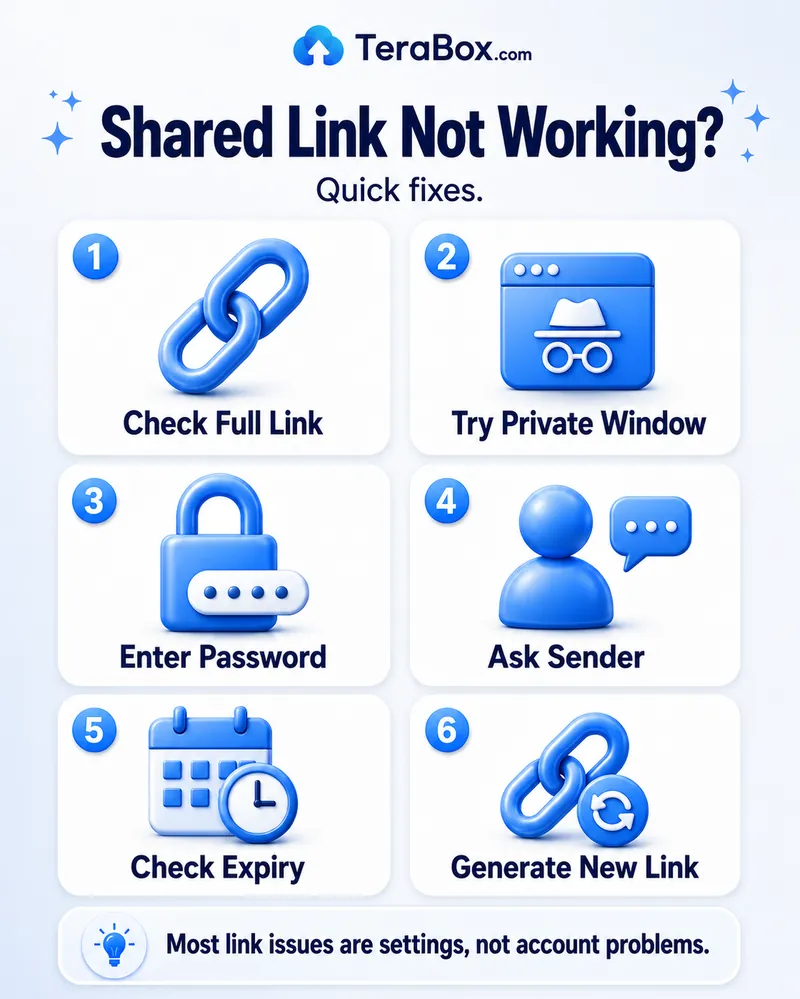
Possible causes include:
- Someone left out part of the URL
- Extra punctuation got added to the link
- The link expired
- The owner deleted the file
- Access settings changed
- The link requires a password
- The shared account became unavailable
- The browser session is interfering
- The content is restricted
Copy and paste the complete link directly into your browser. If it still fails, test it in a private window.
TeraBox’s official user guidance recommends checking whether a shared link is still valid or has expired. If the issue continues, the sender may need to review the link or contact support.
The most reliable fix is usually just asking the owner to create and send a brand-new, complete link.
Uploaded Files Are Missing or Not Synchronizing
Don’t immediately assume TeraBox deleted your files — check these possibilities first.
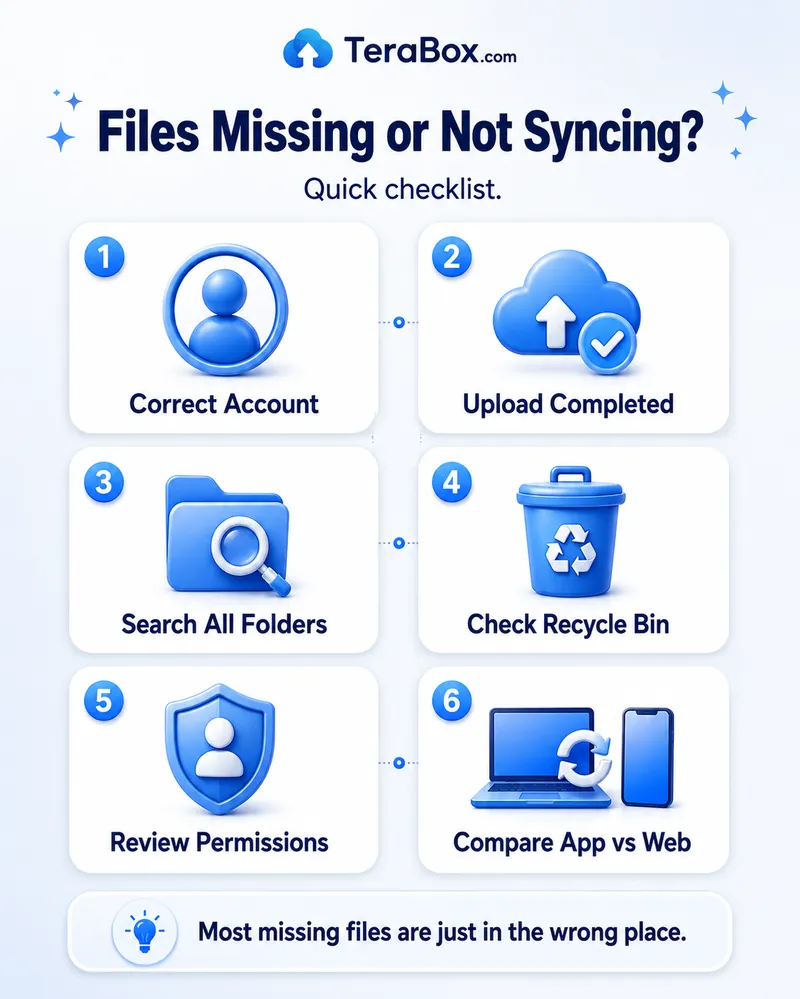
You Logged Into a Different Account
Sign out and log back in using your original email, phone number, Google account, Facebook account, or Apple ID method.
TeraBox identifies account confusion as a possible reason files appear to be missing.
The Upload Never Completed
A file sitting in an upload queue might not actually exist safely in cloud storage yet.
Check whether it opens through the web version or another device.
Photo Permission Was Limited
If you only granted the app access to selected photos, the rest of your photos never had a chance to back up.
Review your photo permission settings and upload the missing content after granting the right access.
Automatic Backup Was Disabled
Check whether photo or folder backup got turned off, paused, or limited by your network settings.
The File Is in Another Folder
Search for the filename and check:
- Recent files
- Photos
- Documents
- Videos
- Automatic backup folders
- Shared content
- Recycle Bin
The App Is Not Synchronizing
If files show up online but not inside the app, try these steps:
- Close and reopen TeraBox
- Refresh the file list
- Confirm your account
- Update the app
- Sign out and back in
- Clear temporary cache on Android
- Reinstall only as a later step
Compare the app with the web version.
When to Contact TeraBox Support
Contact TeraBox support once you’ve identified the symptom, completed the relevant low-risk checks, and the problem still remains.
Reach out to support especially when:
- The same problem happens on multiple devices and networks
- You can’t access the correct account
- Verification messages never arrive
- Files are missing from both the app and website
- The same upload or download keeps failing
- A subscription or payment issue comes up
- An unexplained account restriction blocks your access
- A shared link you created doesn’t work for any recipient
Include this diagnostic information to help support resolve things faster:
- Device model
- Operating-system version
- TeraBox app version
- Exact error message
- Screenshot of the error
- Approximate time the issue began
- Whether the web version works
- Whether another network works
- Whether every file or only one file is affected
- The login method you used, without sharing your password
TeraBox directs you to its Help and feedback area and offers helpdesk@terabox.com for support inquiries.
Never send your password, complete payment-card details, or a verification code in a support message. For broader account-protection habits, see our TeraBox safety and privacy guide.
Frequently Asked Questions
Final Verdict
When TeraBox stops working, diagnose the problem before you reinstall the app.
Start by figuring out whether the issue affects the entire service, your network, one device, one account, or a specific file. Then apply the least destructive fix that actually applies. Try restarting, changing your network, updating the app, checking storage, and reviewing permissions before you clear complete app data or reinstall.
Pay close attention to your original sign-in method. Logging into a second account or using a different Google, Facebook, email, phone, or Apple ID route causes many apparently missing-file problems.
Stick to the official TeraBox app while troubleshooting. Protect your unfinished uploads and local offline files, and contact TeraBox support if the same problem keeps happening across devices, browsers, and networks.